

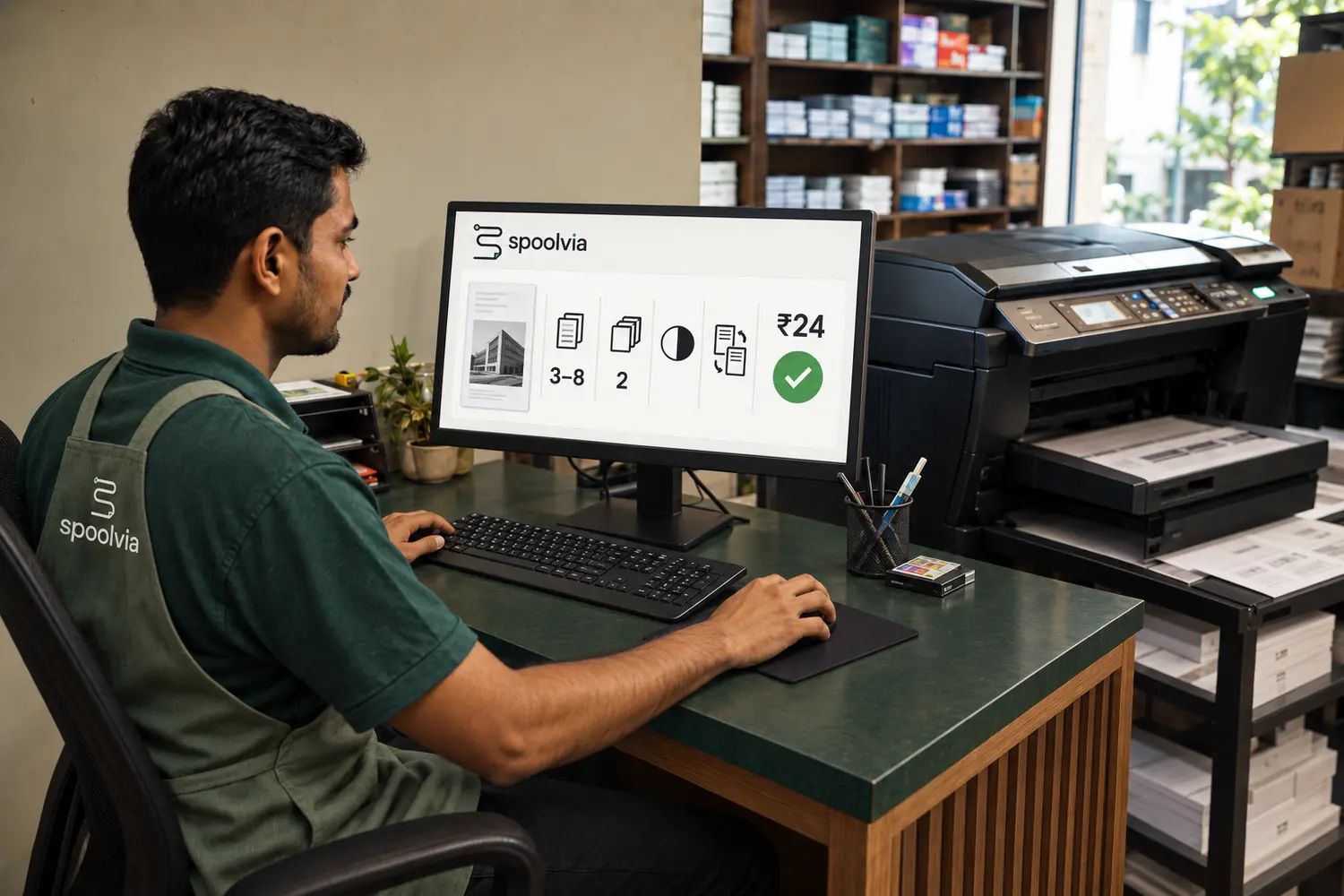
Choosing print shop software in India starts with your busiest counter problem: finding files, repeating print instructions, checking payments or handling printer failures. Use this guide to prepare a useful demo and compare what actually happens to an order. The best fit is the system your staff can operate with your printers and prices.
What to remember
- Test a complete order, not only document upload.
- Use actual shop prices and difficult print combinations.
- Ask what happens when payment or printer acknowledgement is unclear.
- Confirm exactly where files are stored and when they are deleted.
Which counter problem are you trying to remove?
Write down what staff currently repeat for every phone-based order. Common examples include downloading a document from chat, asking which pages are needed, confirming copies, checking whether colour is required and matching a payment screenshot to the correct customer. Software should reduce that reconstruction work.
If the new system only moves the PDF into another inbox, the core problem remains. The document, requested settings, price, payment state and printer release should stay connected from the customer confirmation to the shop's final action.
Bring these five things to the demo
A vendor’s sample file tells you little about a busy local photocopy shop. Prepare a small set of dummy documents with no real customer information. Use the same files and questions for every product you evaluate.
- Your rate card: B&W and colour, paper sizes, copies and single- or double-sided rules.
- Three sample jobs: a one-page form, a longer PDF with a selected range, and a landscape page.
- Your real equipment list: computer operating system, printer models, installed drivers and network setup.
- Two staff roles: the owner who changes prices and the operator who handles orders.
- A short list of daily problems: note what happened, how staff resolved it and whether pages were wasted.
Can customers prepare the order without staff help?
Ask a person who has not seen the product to scan the shop QR and configure a realistic job. The flow should work in a phone browser without creating a customer account or installing an application. Page range, copies, paper, colour and sides should be easy to review before submission.
The available choices should reflect what the shop can fulfil. Showing every possible print option may look flexible, but it creates counter disputes when an installed printer or paper setup cannot produce the selected result.
For a PDF with a cover and numbered pages, ask the operator to print the requested section. Adobe’s documentation explains that displayed page labels can differ from page positions. This makes a better trial than printing every page of a simple one-page sample.
References: Adobe Acrobat: print settings
Who controls pricing and print release?
A local shop may charge different rates for B&W, colour, paper sizes and duplex output. Enter the real rates and calculate several combinations during the trial. Check whether the customer sees the same total that the merchant sees and whether the confirmed total remains attached to the order.
Then test payment states. Online payment should be verified rather than accepted from a browser message alone. Cash or pay-at-counter work should remain held until staff confirm receipt. Ask who can override a state and whether that action is recorded.
Does it work with the actual shop computer and printers?
Printer support is not a yes-or-no marketing claim. It depends on the operating system, installed driver, paper sizes, colour mode, duplex behavior and the queue used by the shop. Test each customer-visible option against the physical output you expect.
Also disconnect or pause a printer during a controlled test. The system should distinguish a rejected job from one whose result is uncertain. Automatic retry is convenient for digital work, but it can waste paper and expose customer documents when the first physical print may already have started.
Before blaming the software, verify the selected printer, power and connection. These are also starting checks in Apple’s troubleshooting guide. A successful trial should document the actual printer model, driver, computer and enabled options so staff can reproduce the setup.
References: Apple: solve printing problems on Mac
Use this scorecard during a software trial
Mark each row as passes, needs work or not supported. Keep a short note of what you observed. A missing feature that your shop needs every day matters more than several attractive features that you will rarely use. These are suggested trial checks, not results from a comparison test.
| Test | What a useful result looks like |
|---|---|
| Selected pages and copies | The order and physical pages match the request; the price follows your rate card. |
| Two customers at once | Staff can identify each job without opening the other customer’s document. |
| Unconfirmed online payment | The job stays held; staff can see what needs checking. |
| Pay at counter | An authorised operator confirms receipt before the applicable release step. |
| Interrupted printer job | The system explains the state and prevents an operator from blindly duplicating output. |
| Temporary file cleanup | The provider explains cloud deletion, local copies and exceptions separately. |
| Staff handover | A second operator can understand pending work without a verbal reconstruction. |
What happens to customer files and who supports the shop?
Ask where source and prepared files are stored, who can access them and the exact deletion deadline. Temporary print documents should not silently become a permanent archive. Spoolvia removes uploaded source and prepared print files from its upload storage within 24 hours of upload.
Finally, confirm onboarding and support ownership. Spoolvia is invitation only, so merchant workspaces are provisioned before sign-in and the printer workflow is checked before a public desk is made available. That controlled setup is different from an open marketplace signup.
References: Spoolvia privacy notice
Compare total cost, then decide what to change
Ask for a written explanation of subscription charges, setup work, payment charges, support and any equipment you need to replace. Check what is included in the quoted price and what is charged separately. This guide does not publish Spoolvia pricing or assume another supplier’s commercial terms.
Measure your own baseline before a trial: time spent handling a few typical jobs, orders needing clarification and pages reprinted after an avoidable mistake. Repeat with the same kind of work during the trial. Do not turn a short, quiet demonstration into a claim about monthly savings.
Spoolvia focuses on QR document intake, shop-controlled pricing, payment checks and the local Agent handoff. If you need a full stock, accounting or production-planning system, ask about those needs separately. Spoolvia is currently invitation only; merchant access is provisioned before sign-in. Start by checking whether that workflow fits your counter.
References: Spoolvia for print shops
Sources and product references
External documentation supports the general guidance. Spoolvia pages describe our product. Examples and trial checklists are illustrative, not customer case studies or measured results.
- Adobe Acrobat: print settings
Primary documentation for page selection, page labels and orientation. The counter examples in this guide are our own.
- Apple: solve printing problems on Mac
Primary guidance for checking the selected printer, power and network connection.
- Spoolvia privacy notice
Product reference for optional customer details, cloud retention and local Agent cleanup.
- Spoolvia for print shops
Product reference for supported shop setup and invitation-only merchant access.
Sources checked .