Customer print file privacy covers the whole journey: the upload, the shop computer, the printer and the paper handed back at the counter. A resume or application form can remain exposed even after printing is finished. This guide explains how to reduce unnecessary copies and what Spoolvia’s cleanup promise covers.
What to remember
- Avoid leaving customer documents in personal chat histories or shared inboxes.
- Collect only the contact details the shop needs for the specific order.
- Keep payment verification separate from document access.
- Define cleanup for both cloud storage and the shop computer.
Why can chat-based document intake become risky?
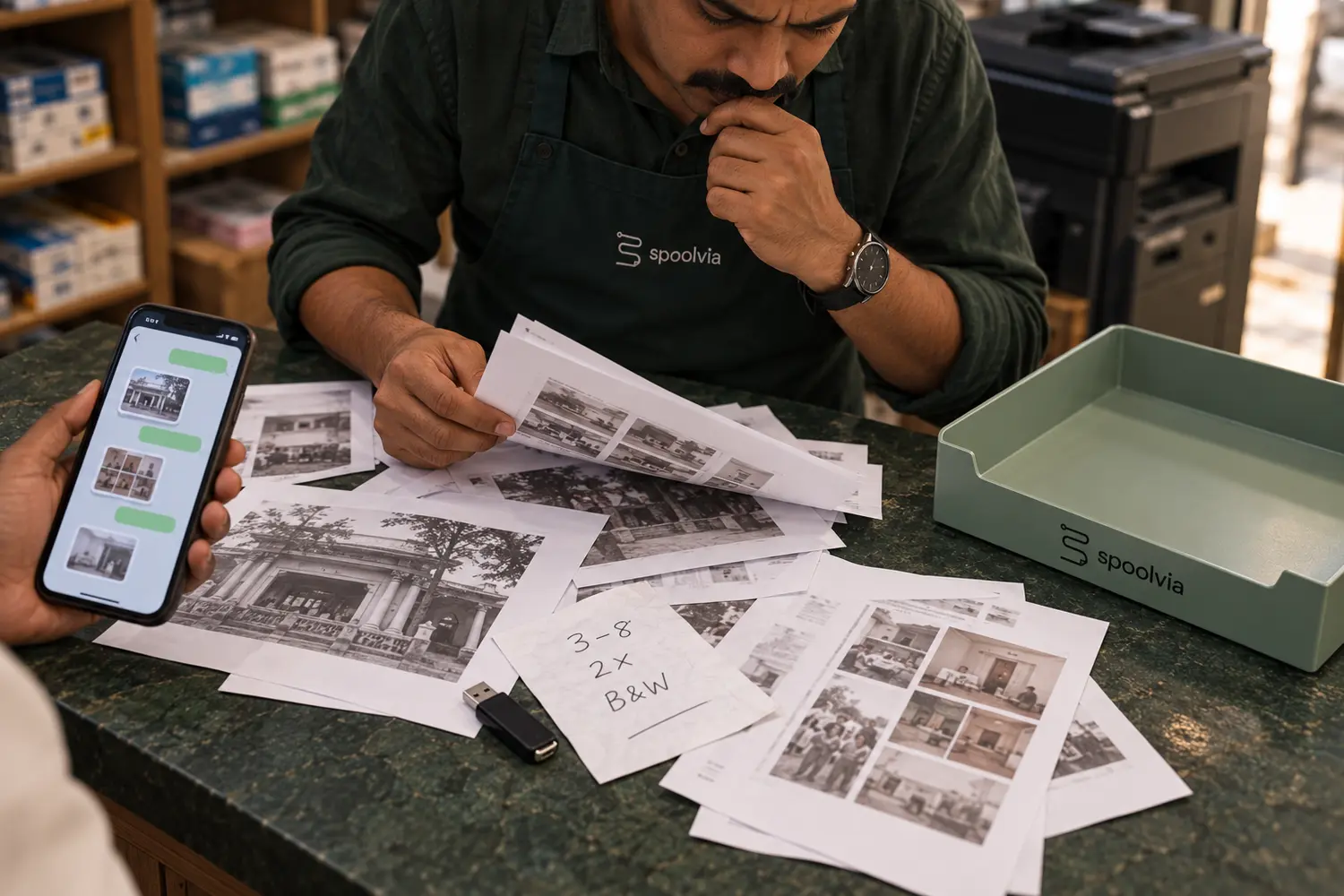
Chat is convenient, but it can leave documents mixed with personal conversations and stored long after the customer has collected the print. Staff may download the same file to several phones or computers. Instructions can also become separated from the document, making it harder to know which pages belong to which customer.
A shop-specific print flow gives each submission its own order reference. The document and settings stay together, and access can be limited to the systems involved in preparing and printing that order.
References: Spoolvia: secure document printing
Follow one document through your shop
Use a dummy resume to map the route a file takes. Ask one staff member to describe each place it is opened or saved, and another to check that list. You are looking for unnecessary copies, not for a reason to inspect a real customer’s private document.
| Place | Question for the shop |
|---|---|
| Upload or chat | Is the file tied to one order, or left in a conversation for later? |
| Shop computer | Does staff save an extra copy to Downloads, Desktop or a shared folder? |
| Sync or backup | Could that extra folder be copied to another device or cloud account? |
| Printer | Does this model retain jobs or allow reprinting from its own controls? |
| Output tray | Can another customer see or collect the pages before handover? |
What customer data does a print order really need?
The document and print settings are necessary. A name or phone number may help the shop identify a pickup, but those details should be optional when the workflow does not require them. Do not collect a full customer profile simply because a form can ask for it.
If a customer requests a deletion confirmation, the email address should be used for that message and then removed from the notification queue. The purpose should remain clear at the moment the address is collected.
References: Spoolvia privacy notice
How long should uploaded print files stay in cloud storage?
A print platform needs the source file long enough to validate and prepare the job, but that does not justify permanent storage. Spoolvia treats source and prepared files as private temporary data and permanently removes them from upload storage within 24 hours of upload.
A pending job should not become a reason to keep a document indefinitely. If a customer returns after file deletion, explain that a new upload is needed; do not promise that staff can recover the deleted file.
References: Spoolvia privacy notice
What about the temporary copy on the shop computer?
The paired Spoolvia Agent temporarily downloads the prepared PDF to the shop computer for the installed printer queue. According to Spoolvia’s privacy notice, it removes its working file when the job completes, fails or becomes uncertain. It also clears leftover terminal files at startup and, while running, purges retained working files that reach 23 hours.
If the shop computer is powered off, local cleanup resumes when the Agent next starts. That distinction matters: the cloud deadline and the local computer’s cleanup are different. Neither statement should be stretched into a claim that the software erases every copy a staff member saved elsewhere.
Printer job history and storage depend on the device. Check its manufacturer’s instructions, particularly before servicing, selling or replacing a printer. Do not treat deletion from Spoolvia’s upload storage as proof that a printer’s own storage has been cleared.
References: Spoolvia privacy notice
Which simple counter habits improve privacy?
Turn screens away from waiting customers, lock the computer when staff step away and avoid reading document content unless it is needed to resolve a print problem. Return or destroy unwanted physical pages instead of leaving them near the printer. Use named staff accounts where possible so sensitive actions are not anonymous.
Technology cannot remove every physical risk. It can make the document path shorter, the access boundaries clearer and the cleanup deadline enforceable. The shop still owns the final handling of printed pages and any device-level storage outside the Spoolvia workflow.
Protect the computer and the people using it
The NCSC recommends locking devices, keeping software supported and applying updates. For important online accounts, it recommends passkeys where available, or strong unique passwords with two-step verification. It also advises removing access that is no longer needed and using standard accounts for everyday computer work.
Apply these general principles to the accounts your shop actually uses. Check which protections each service offers; this is not a claim that every method is available in Spoolvia. Keep administrator access limited to setup and maintenance rather than sharing it across the counter.
References: NCSC: protecting your devicesNCSC: secure your important online accounts
A short privacy checklist for opening and closing
Make the routine easy enough for a second operator to follow. Assign an owner for each check and keep the checklist free of customer names or document contents. A checklist should confirm that the counter is ready, without becoming another record of private information.
- Opening: start the approved Agent, check account access and remove yesterday’s unclaimed pages from public view.
- During a job: use the order reference, ask before opening document contents and collect only details needed for the request.
- At pickup: confirm the correct order discreetly and hand over the complete set.
- Closing: check for extra staff-saved files, review leftover paper and leave the computer locked.
- If a copy reaches the wrong person: stop further sharing, establish what happened and contact the responsible shop owner. For a Spoolvia privacy question, use the contact in its privacy notice.
References: Spoolvia privacy notice
Sources and product references
External documentation supports the general guidance. Spoolvia pages describe our product. Examples and trial checklists are illustrative, not customer case studies or measured results.
- Spoolvia privacy notice
Product reference for optional customer details, cloud retention and local Agent cleanup.
- Spoolvia: secure document printing
Product reference for payment checks, access boundaries and uncertain print output.
- NCSC: protecting your devices
General device-security guidance on screen locks, supported software and updates.
- NCSC: secure your important online accounts
General account-security guidance on strong sign-in methods, removing old access and separate administrator accounts. It does not describe Spoolvia authentication features.
Sources checked .