
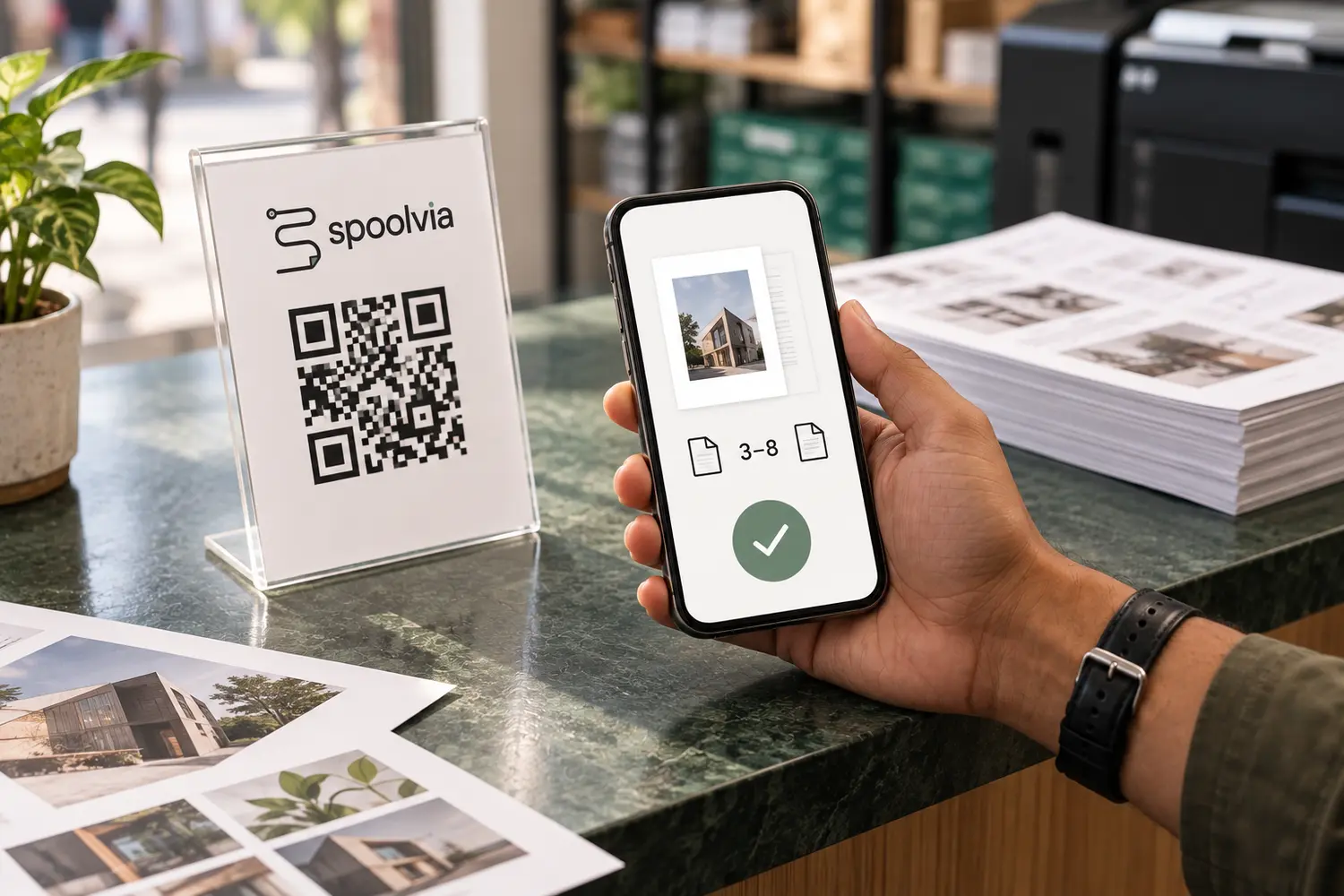
QR printing for print shops lets a customer scan the shop’s code, upload a document and send clear print instructions from their phone. In Spoolvia, the shop checks the order and payment state, then the paired Agent sends eligible work to the installed printer. Here is how that flow works, what can go wrong and what to check before putting a QR stand on your counter.
What to remember
- The QR must open a shop-specific page, not a generic upload box.
- The file, pages, copies, colour, paper and sides should remain one order.
- Online and pay-at-counter jobs need different release rules.
- A physical print should never be retried blindly when acceptance is uncertain.
What does QR printing change at the counter?
Many print shops already receive documents from phones, but the information arrives in pieces. The PDF may be in WhatsApp, the requested pages may be spoken at the counter, and payment may be checked in another application. Staff have to rebuild the order before they can print it.
A structured QR workflow collects those details together. The customer opens the shop page in a browser, selects the document and chooses only the options that the shop offers. The order can then carry the configured price, payment route and release state without asking staff to search through a conversation.
- One QR belongs to one approved shop location.
- Customers do not need a Spoolvia account or mobile application.
- The shop keeps control of services, prices and printer availability.
References: Spoolvia: how QR printing works
What happens after the customer scans?
The phone camera opens the public print desk for that shop. The customer selects a supported PDF, JPG or PNG file and chooses the available print options. For a PDF, confirm the selected pages and number of copies. Colour, paper and double-sided choices depend on the shop setup. Offering a choice the printer cannot fulfil creates another conversation at the counter.
Before confirmation, the customer can review the requested job and the price produced by the shop's configured rules. The result is not a loose file. It is a job with the document, settings, price and payment route connected to the same reference.
References: Spoolvia: how QR printing works
A simple example: 6 PDF pages, 2 copies
Imagine a customer brings a six-page PDF and wants pages 2–4, two copies, in black and white. That means three selected pages per copy and six printed page sides in total. With single-sided output, the job uses six sheets. If the printer supports double-sided output and each copy starts on a fresh sheet, it uses four sheets. This example explains the counts; it is not a Spoolvia price quotation.
Ask the customer to check the actual pages, not only the page numbers printed inside the document. A cover sheet can make the PDF’s third page different from the page labelled “3”. Adobe’s print documentation distinguishes page selection from page labels. A quick visual check is useful for forms, booklets and assignments.
The shop should set and explain its charging rule. Charging per printed side and charging per sheet are different. Two copies should also mean two complete sets when that is what the customer expects.
References: Adobe Acrobat: print settings
When should the order become ready to print?
A payment attempt is not the same as verified payment. Online work should remain held until the required provider state has been confirmed. Pay-at-counter work needs a separate state because a staff member must confirm that payment was actually received. Keeping those paths separate reduces accidental printing before the commercial step is complete.
The merchant should still be able to review the order before physical output. Automation is most useful when it removes repeated data entry while leaving uncertain payment or printer conditions visible to the person operating the counter.
References: Spoolvia: secure document printing
How does the document reach the existing printer?
The Spoolvia Agent runs on the approved Windows or macOS computer in the shop. It receives eligible work, checks the prepared document and submits it through a compatible printer queue already installed on that computer. The customer phone does not connect directly to the printer and does not need a printer driver.
Physical printing has an important edge case: a computer can lose confirmation after a printer has already accepted the job. Sending the same work again may create duplicate pages. Spoolvia treats an ambiguous acknowledgement as uncertain and asks the shop to review it instead of applying a blind automatic retry.
References: Spoolvia: how QR printing worksSpoolvia: secure document printing
What should staff do if printing stops?
Start with the order reference and the last confirmed state. “Payment pending”, “waiting for the Agent” and “printer output uncertain” describe different problems. Asking a customer to pay again or upload again before checking the original job can make the problem harder to resolve.
Apple’s printer guidance starts with simple checks such as power, the selected printer and the network connection. Apply the same principle at the counter: establish which part stopped before changing settings.
- Payment unclear: check the recorded provider state before treating a screenshot as proof or asking for another payment.
- Agent unavailable: check the paired shop computer, internet connection and Agent status.
- Printer error: inspect paper, toner, the device display and its installed queue.
- Output uncertain: check the tray and queue with the operator before deciding whether another print is needed.
References: Apple: solve printing problems on MacSpoolvia: secure document printing
What should a shop test before displaying the QR?
Use the real shop computer, driver and printers. Test a selected page range, multiple copies, B&W, colour and double-sided printing where supported. Confirm the customer price for each combination, then test both online and counter payment paths. A failed or interrupted print should also be part of the trial.
Spoolvia is currently invitation only. A merchant workspace and public print desk are provisioned only after the location, Agent, printer capabilities, pricing and payment route are ready. The QR should become customer-facing after that setup is complete, not before it.
Sources and product references
External documentation supports the general guidance. Spoolvia pages describe our product. Examples and trial checklists are illustrative, not customer case studies or measured results.
- Spoolvia: how QR printing works
Product reference for customer intake, payment release and the shop Agent.
- Adobe Acrobat: print settings
Primary documentation for page selection, page labels and orientation. The counter examples in this guide are our own.
- Apple: solve printing problems on Mac
Primary guidance for checking the selected printer, power and network connection.
- Spoolvia: secure document printing
Product reference for payment checks, access boundaries and uncertain print output.
Sources checked .